Dell iDRAC is a feature-full server remote administration tool but iDRAC is missing the very basic functionality to boot from a ftp or http based ISO image. (With an HPE server, you can easily boot from an ISO image which is stored in an webserver).
Luckily, we have vFlash media in those PowerEdge servers which we can use as install or boot media. The Dell vFlash media card provides additional functionality to users who already have an iDRAC6 enterprise card. This vFlash media is a 1 or 8 GB secure digital (SD) card that inserts into the iDRAC6 enterprise daughter card on the back of the server; blade servers must be removed from their chassis to access this port. Users can use the space on the vFlash card to create up to 16 partitions in sizes ranging from 1MB to 4GB.
How to create bootable partion using an existing ISO image
Step 1 : Initialize the vFlash Medium
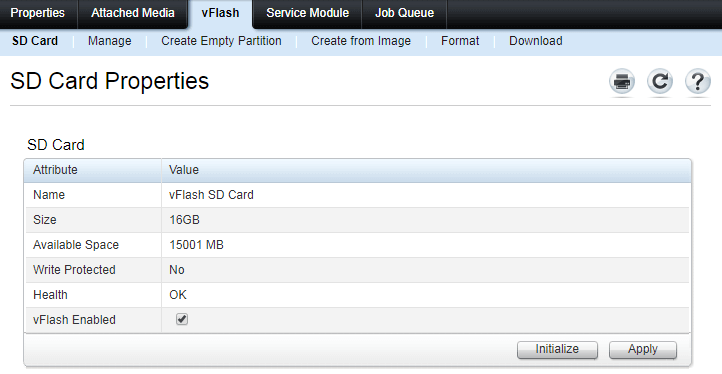
You have to initiate the SD card before you can create any partitions. Open iDRAC main screen, goto vFlash Tab, Click Initialize button.
Step 2 : Create a partition from Image
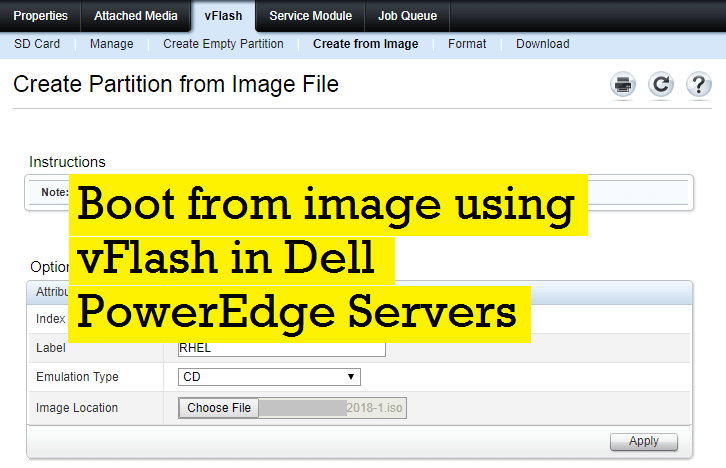
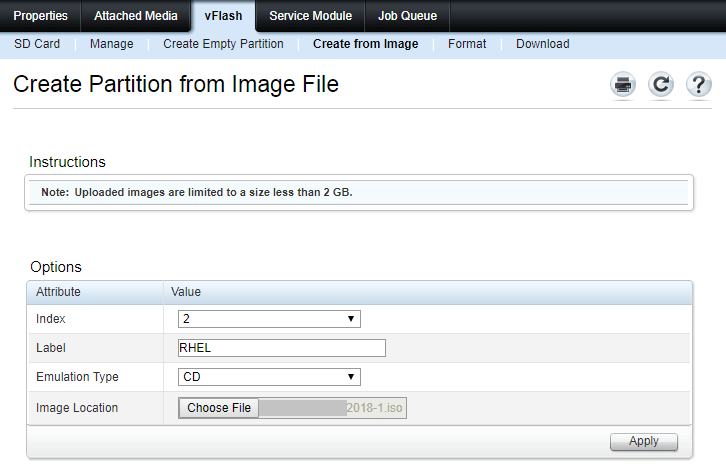
Choose “ Create from Image ” button and choose your ISO file to use. (This ISO file location can be your local machine or from a shared server.) Give some meaning label for the partition.
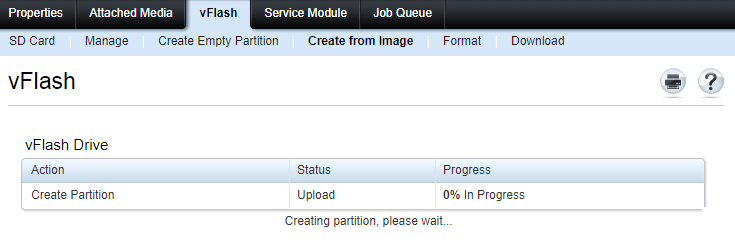
Then wait for the ISO to be uploaded and complete partition creation task.
Step 3 : Attach partition to the server
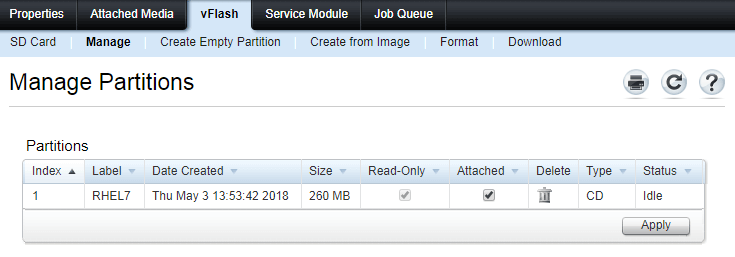
Goto Manage tab, and see the partitions created. Now you need to tick on that “Attach” checkbox and apply the settings.
Step 4 : Choose to boot from vFlash partition
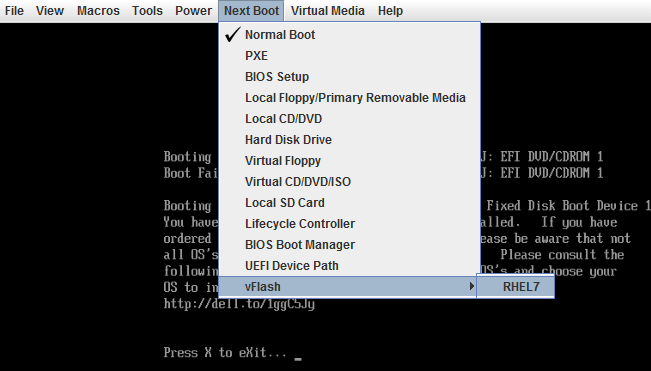
Now the partition is ready to boot, you need to choose this partition/image as next bootable device as below.

Gineesh Madapparambath
Gineesh Madapparambath is the founder of techbeatly. He is the co-author of The Kubernetes Bible, Second Edition and the author of Ansible for Real Life Automation. He has worked as a Systems Engineer, Automation Specialist, and content author. His primary focus is on Ansible Automation, Containerisation (OpenShift & Kubernetes), and Infrastructure as Code (Terraform). (Read more: iamgini.com)
 Jagath Jayaprakash