Cyber Deals - Get up to 65% off on CKA, CKAD, CKS, KCNA, KCSA exams and courses!

How to Increase Attachment File Size Limit in GitLab

How to Increase Attachment File Size Limit in GitLab

We know GitLab is one of the best and easy to use git server solutions available in the market now. And GitLab CE is available as free and we can simply spin up a VM and set up our own Git server with all features. We can fine tune the GitLab server as needed and based on organization policies and this must be done if you are using this in production.

Let me explain a common scenario. While using our internal GitLab server, we received complaints that users are not able to upload large files from GUI and unable to proceed with deployment using the repositories.

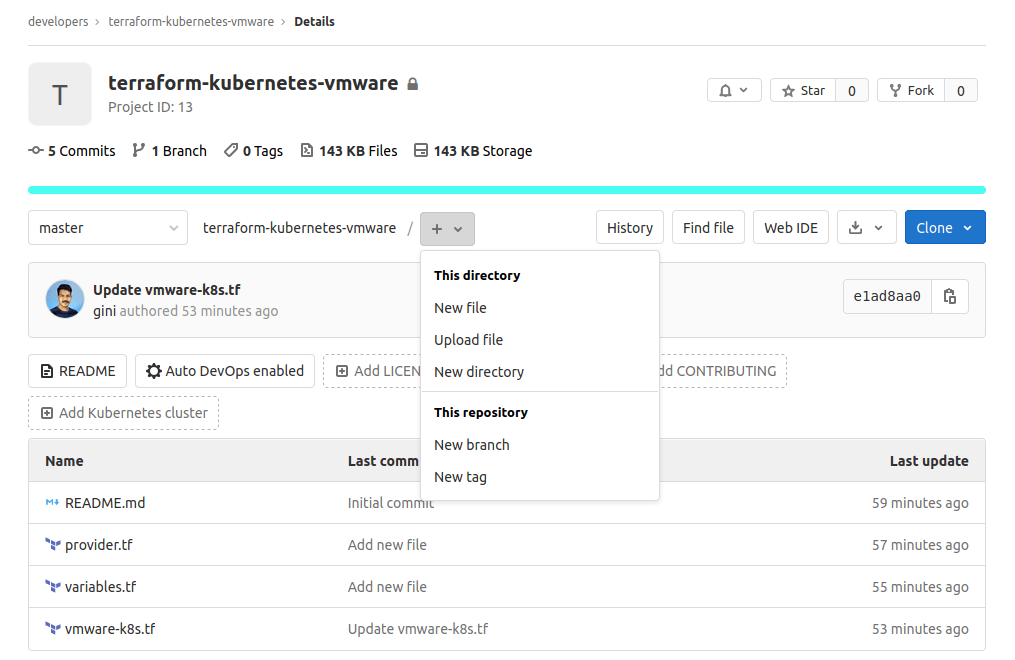
So, we tested the scenario; from the GUI, we selected the Upload file option.

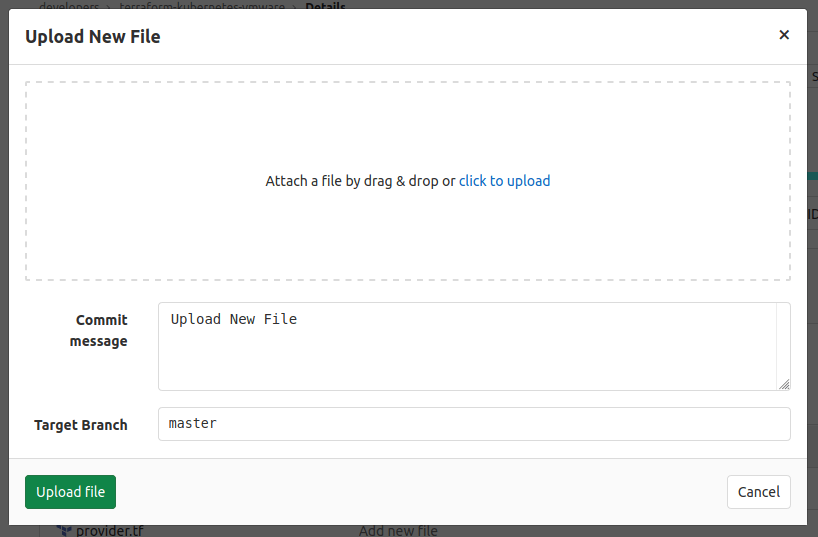
Upload Window will popup
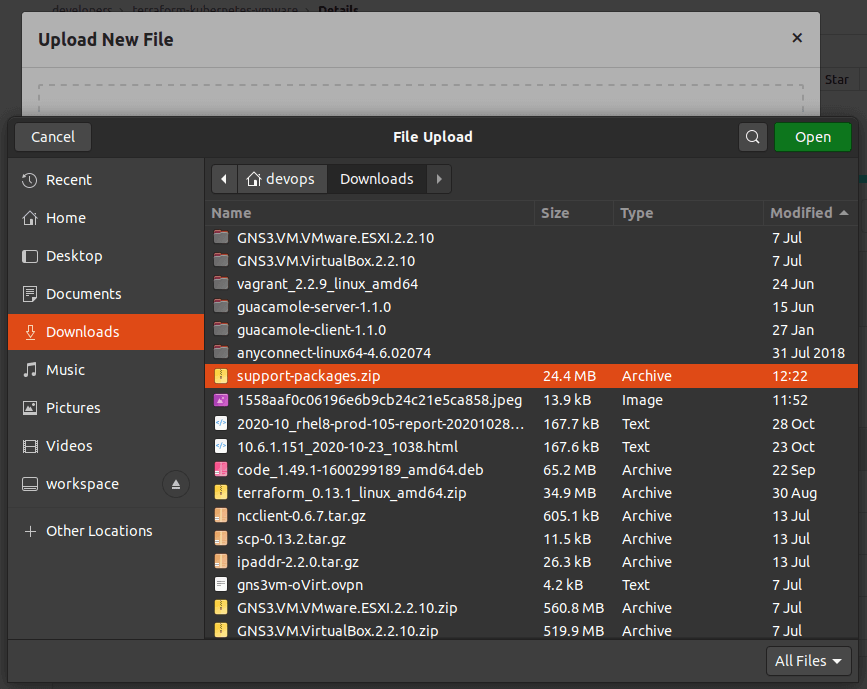
Choose the file from the file browser window
Hey, users are right; there is an error as the Popup window shows a warning and says “Maximum File Size 10MB!”
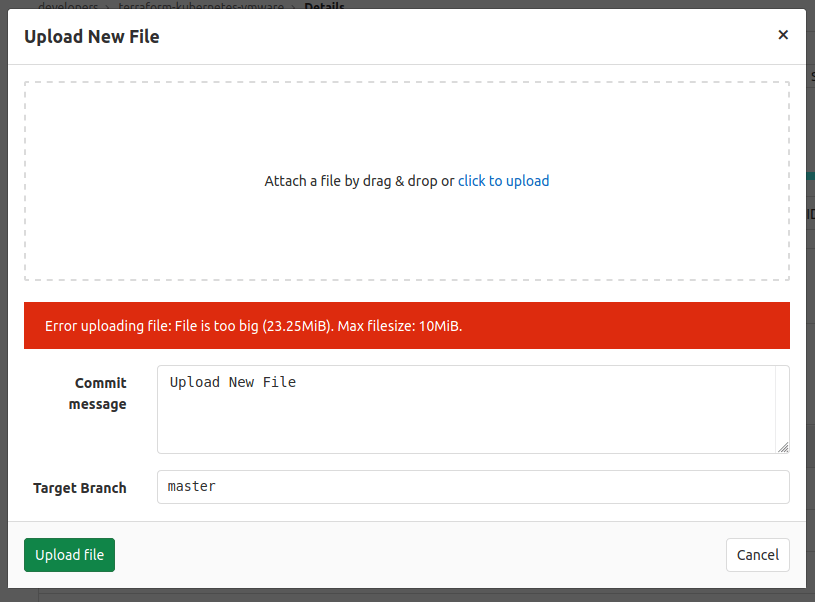
Aaah, now I remember; we forgot to set this parameter for this git server.

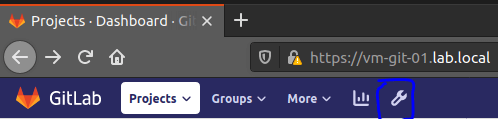
So, we need to login as a root user (or any user with Admin access) via the same GitLab GUI from a browser. Then we open Admin configurations for GitLab server.
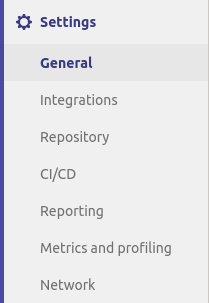
Goto Settings -> General
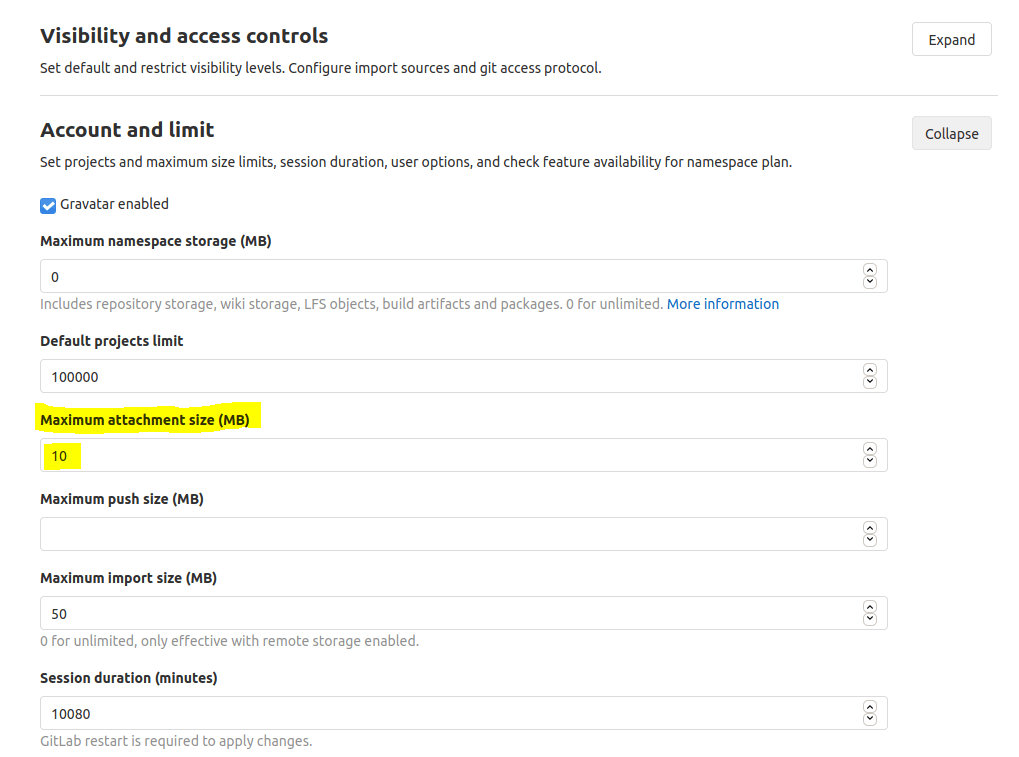
And expand Accounts & Limits settings. Here you can see, the default File upload size is limited to 10MB; no wonder.
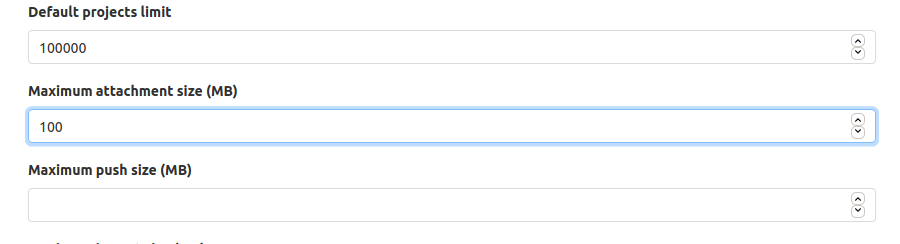
I have updated the value to 100MB as shown in the image – yes that is enough for now.
And don’t forget to Save the configuration

So, I came to my login (you can do it from root login as well; no difference) to verify the same.
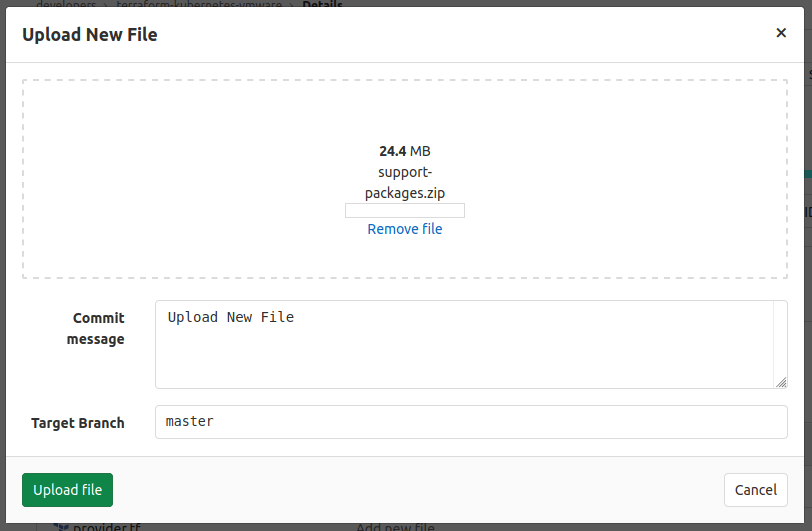
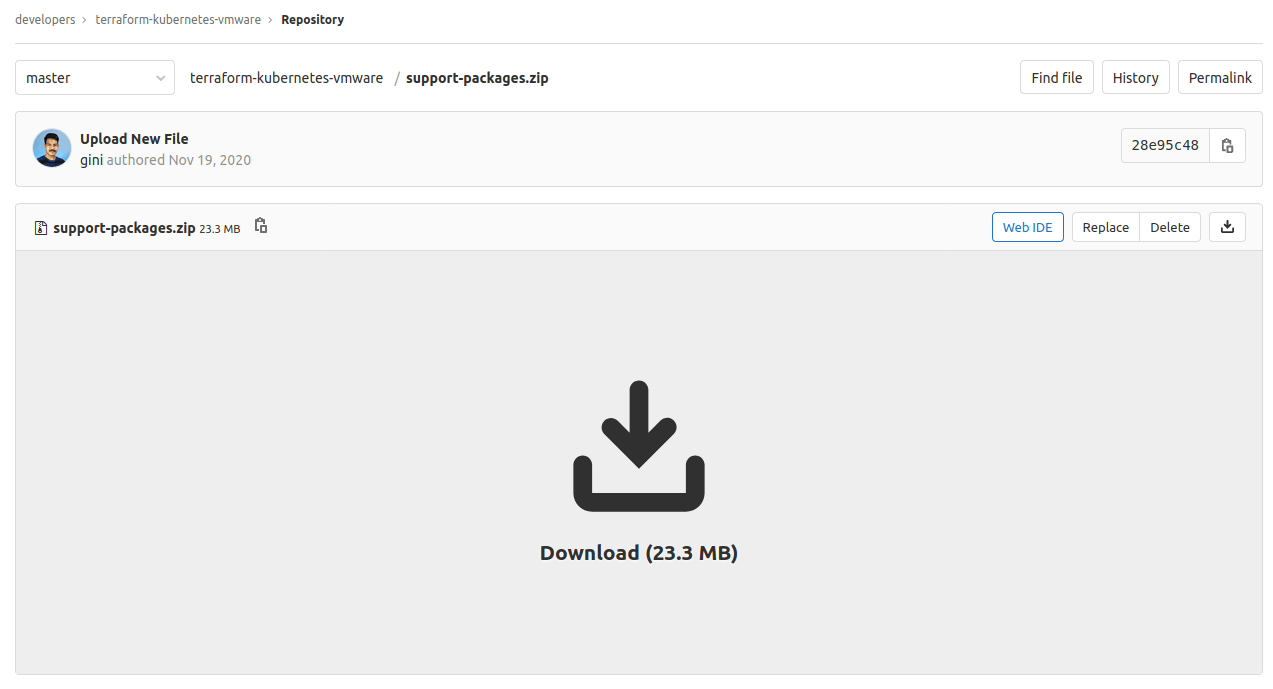
And yes, no error this time and the file is uploading.

And finally we can upload the file which is larger than 10MB is already uploaded.

Gineesh Madapparambath

Gineesh Madapparambath

Gineesh Madapparambath is the founder of techbeatly. He is the co-author of The Kubernetes Bible, Second Edition and the author of Ansible for Real Life Automation. He has worked as a Systems Engineer, Automation Specialist, and content author. His primary focus is on Ansible Automation, Containerisation (OpenShift & Kubernetes), and Infrastructure as Code (Terraform). (Read more: iamgini.com)

Disclaimer: Views expressed in articles are those of the respective authors and do not necessarily reflect the views of their employers or this site. While we aim for accuracy, please verify information before relying on it, and let us know if you spot an error.
Share:

Related Posts

Ansible Tower – How to Backup and Restore

Ansible Tower – How to Backup and Restore

Ansible Tower is a wonderful product which help to implement a central hub for IT automation. Ansible Tower is basically a web console and REST...

How to Create, Increase or Decrease Project Quota in OpenShift

How to Create, Increase or Decrease Project Quota in OpenShift

Usually application owner or project owner will specify the quota settings (Memory and CPU) during project creation. But sometimes, they realize that …

Automation

Configure Projects with Global Network in OpenShift

We will have requirements, where customer need to configure multiple projects but they want pods inside those projects to communicate each other. …

HashiCorp Certified Terraform Associate – Learning & Exam Tips

HashiCorp Certified Terraform Associate – Learning & Exam Tips

Introduction I started using Terraform somewhere in 2018, but very limited usage as I thought it is just another tool for provisioning infrastructure …

Connecting Ansible Tower to Git Server with Self Signed Certificates

Connecting Ansible Tower to Git Server with Self Signed Certificates

So many questioned me when I mention git server in an Ansible Tower environment; and later I realized that, most of them are keeping their...

Adding Container Images to Google Container Registry (GCR)

Adding Container Images to Google Container Registry (GCR)

Google Container Registry (GCR) is a service in Google Cloud Platform (GCP) to manage your own docker container repository. This is fully managed …