- Part 1: Introduction and requirements
- Part 2: Preparing for migration (This article)
- Part 3: Migration procedure
- Part 4: Additional steps
Steps to execute
Make backups of SQL Server
You can make backups of SQL Server by using either of the following options:
- Back up to local disk storage, and then upload files to Azure Blob Storage, if your environment restricts direct backups to Blob Storage.
- Back up directly to Blob Storage with the TO URL option in T-SQL, if your environment and security procedures allow it.
-- Example of how to make a full database backup to a URL
BACKUP DATABASE [SampleDB]
TO URL = 'https://<mystorageaccountname>.blob.core.windows.net/<containername>/<databasefolder>/SampleDB_full.bak'
WITH INIT, COMPRESSION, CHECKSUM
GO
-- Example of how to make a transactional log backup to a URL
BACKUP LOG [SampleDB]
TO URL = 'https://<mystorageaccountname>.blob.core.windows.net/<containername>/<databasefolder>/SampleDB_log.trn'
WITH COMPRESSION, CHECKSUM
Here our database is AdventureWorks2016
Generate a Blob Storage SAS authentication token for LRS
Azure Blob Storage is used as intermediary storage for backup files between SQL Server and SQL Managed Instance. You need to generate an SAS authentication token, with only list and read permissions, for LRS. The token will enable LRS to access Blob Storage and use the backup files to restore them on SQL Managed Instance.
Follow these steps to generate the token:
Open Storage Explorer from the Azure portal.
Expand Blob Containers .
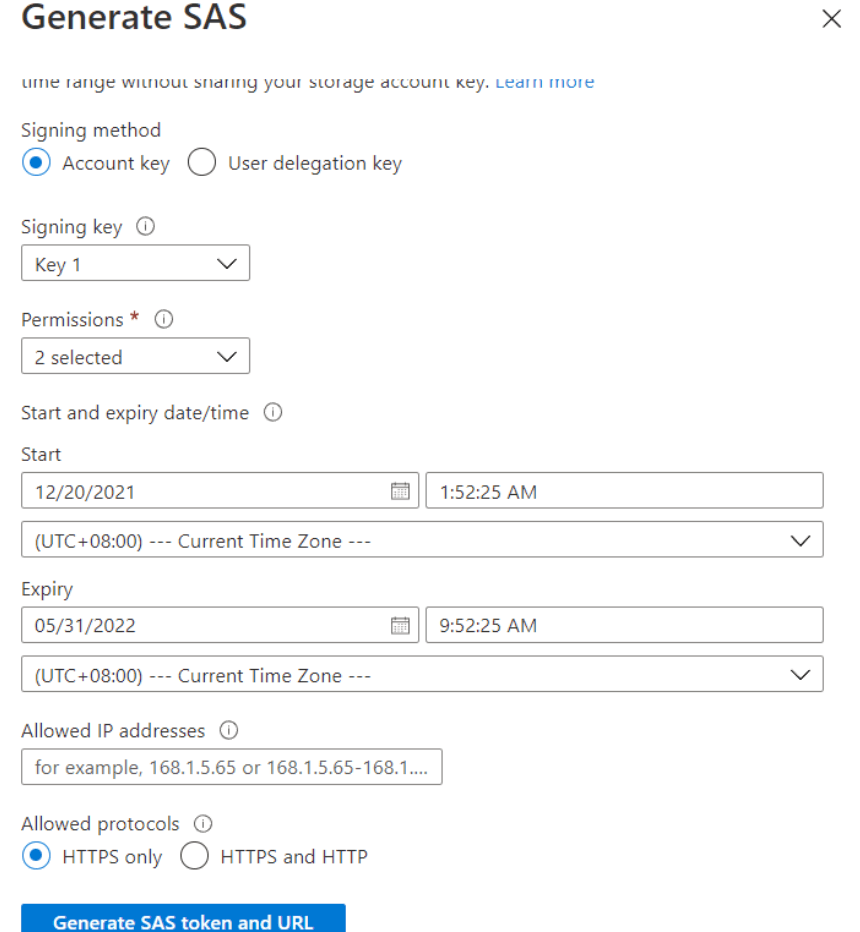
Right-click the blob container and select Get Shared Access Signature .
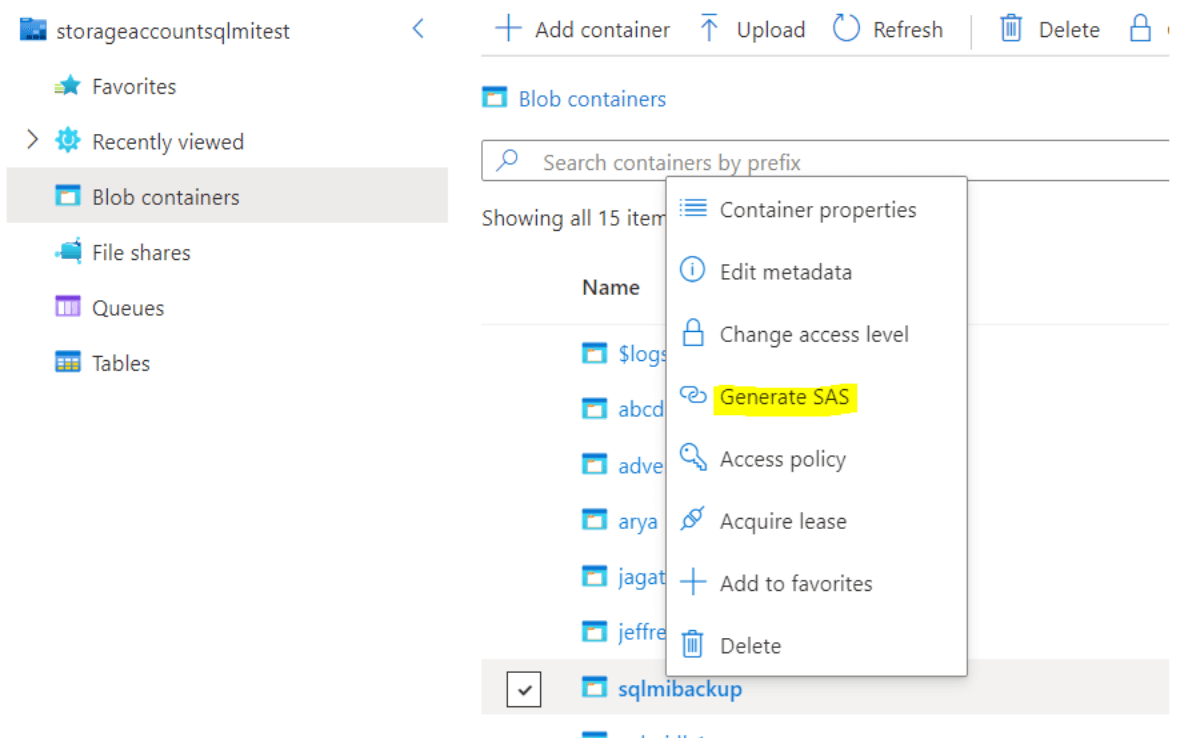
Select the timeframe for token expiration. Ensure that the token is valid for the duration of your migration.
Select the time zone for the token: UTC or your local time.
Important:6. Select the time zone for the token: UTC or your local time.The time zone of the token and your managed instance might mismatch. Ensure that the SAS token has the appropriate time validity, taking time zones into consideration. If possible, set the time zone to an earlier and later time of your planned migration window.
- Select Read and List permissions only.
Important:8. Select Create.Don’t select any other permissions. If you do, LRS won’t start. This security requirement is by design.
Copy parameters from the SAS token
Before you use the SAS token to start LRS, you need to understand its structure. The URI of the generated SAS token consists of two parts separated with a question mark ( ? ), as shown in this example:

In our example it will be
StorageContainerUri: [https://storageaccountsqlmitest.blob.core.windows.net/sqlmibackup/AdventureWorks2016](https://storageaccountsqlmitest.blob.core.windows.net/sqlmibackup/AdventureWorks2016)
StorageContainerSasToken: sv=2020-08-04&st=2021-12-17T17%3A01%3A53Z&se=2022-05-30T17%3A01%3A00Z&sr=c&sp=rl&sig=oo1mHExX5StH85yM6ngYP1onMcu5fpLSoH7PNy5C0Zk%3D
Copy the parameters as follows:
- Copy the first part of the token, starting from https:// all the way until the question mark (?). Use it as the StorageContainerUri parameter in PowerShell or the Azure CLI for starting LRS.
- Copy the second part of the token, starting from the question mark (?) all the way until the end of the string. Use it as the StorageContainerSasToken parameter in PowerShell or the Azure CLI for starting LRS.
Note: Don’t include the question mark when you copy either part of the token.
Log in to Azure and select a subscription
Use the following PowerShell cmdlet to log in to Azure:
Login-AzAccount
Select the appropriate subscription where your managed instance resides by using the following PowerShell cmdlet:
Select-AzSubscription -SubscriptionId <subscription ID>

Jagath Jayaprakash
ITO Service Delivery Consultant III at DXC Technology

 Tan Kai Jian

 Shailaja Korra

 Muhammad Aizuddin Zali
 Gineesh Madapparambath