Introduction
Red Hat Satellite is one of the best system management solutions by which you can deploy, configure, and maintain your systems; it can be physical, virtual, or cloud environments. Satellite is single pane tool for provisioning, remote management and monitoring of multiple Red Hat Enterprise Linux deployments.
Pre-requisites
Follow System requirements, Storage requirements, firewall & port requirement in the official documentation .
Red Hat Satellite Server – Installation Guides
- Red Hat Satellite Server – Connected Installation Method – Part 1 – Prepare Server
- Red Hat Satellite Server – Connected Installation Method – Part 2 – Configure Satellite
- Red Hat Satellite Server – Disconnected Installation Method – Part 1 – Prepare Server
- Red Hat Satellite Server – Disconnected Installation Method – Part 2 – Configure Satellite
Download the Binary ISO
Go to Red Hat Customer Portal and log in. Download the Red Hat Enterprise Linux Server (Binary DVD image) and copy the ISO files to /var/tmp on the Satellite base operating system or other accessible storage device.
# scp localfile username@hostname:remotefile
Refer Installing Satellite Server for more details.
Configuring the Base Operating System with Offline Repositories
-- Create a directory
# mkdir /media/rhel7-server

-- Mount the ISO image
# mount -o loop rhel7-Server-DVD.iso /media/rhel7-server

-- Copy the ISO file’s repository data file
# cp /media/rhel7-server/media.repo /etc/yum.repos.d/rhel7-server.repo

-- Edit the repository data file and add the baseurl directive.
baseurl=file:///media/rhel7-server/

-- Verify that the repository.
# yum repolist

-- Create a directory to serve as the mount point for the ISO file of the Satellite Server.
# mkdir /media/sat6

-- Mount the ISO image for Red Hat Satellite Server to the mount point.
# mount -o loop sat6-DVD.iso /media/sat6
Installing the Satellite Packages from the Offline Repositories
-- Ensure the ISO images for Red Hat Enterprise Linux Server and Red Hat Satellite are mounted:
# findmnt -t iso9660

-- Import the Red Hat GPG keys:
# rpm --import /etc/pki/rpm-gpg/RPM-GPG-KEY-redhat-release

-- Ensure the base operating system is up to date with the Binary DVD image:
# yum update

-- Change to the directory where the Satellite ISO is mounted:
# cd /media/sat6/

-- Run the installation script in the mounted directory:
# ./install_packages
If you have successfully installed the Satellite packages, the following message is displayed:
Install is complete. Please run satellite-installer --scenario satellite.
Verify DNS
Make sure Fully Qualified hostname is configured before installing satellite. Output for hostname -f command should display hostname with FQDN.
Install Satellite
his process will take 20-30 minutes. Replace ORGANIZATION_NAME as needed.
# satellite-installer --scenario satellite --foreman-initial-organization "ORGANIZATION_NAME" --foreman-initial-location "Singapore" --foreman-initial-admin-username admin --foreman-initial-admin-password redhat
Enable Firewall
# firewall-cmd \
  --add-port="80/tcp" \
  --add-port="443/tcp" \
  --add-port="5674/tcp" \
  --add-port="8000/tcp" \
  --add-port="8140/tcp" \
  --add-port="9090/tcp" \
  --add-port="53/udp" \
  --add-port="53/tcp" \
  --add-port="67/udp" \
  --add-port="69/udp" \
  --add-port="5000/tcp"
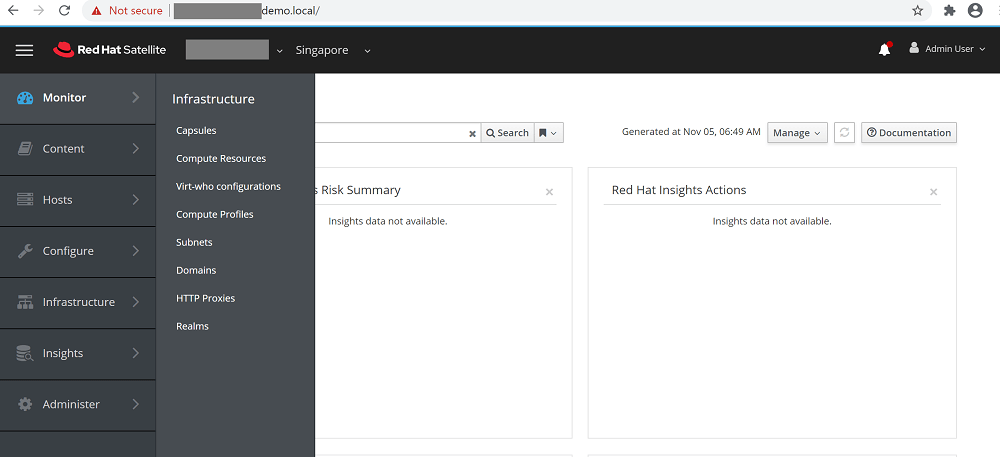
Verify Satellite Console Access
Open Red Hat Satellite Web Console and verify access

Karthik Prabhu
Karthik has worked as Systems Engineer and Specialist in Red Hat technologies (Ansible, Red Hat Satellite, OpenShift), SIEM, Middleware, IAM, Virtualization and Cloud.

 Shibin John

 Gineesh Madapparambath